Getting started
Install
- Download PipePlayer and unzip it.
- Drag
PipePlayer.appinto your Applications folder. - Open it. It's signed and notarized by Apple, so there are no warnings.
PipePlayer needs a Mac with Apple silicon running macOS 13 or later.
Open a tune
Any of these work:
- File → Open… (⌘O) and pick one or more files.
- Drag a file onto the PipePlayer window or its Dock icon.
- Double-click a tune file in the Finder, if PipePlayer is set to open that kind of file.
- File → Open Recent for anything you've opened before.
Then press the play button.
Files it opens
| File | Made by |
|---|---|
.bww | Bagpipe Music Writer, Bagpipe Musicworks Gold, Bagpipe Reader |
.bmw | Older Bagpipe Music Writer |
.abc | ABC notation. A file with several tunes plays them back to back. |
.musicxml, .xml, .mxl | Ensemble, MuseScore and any app that exports MusicXML. Arrangements with several parts play all of them. |
.pipeset | A PipePlayer set (see Sets) |
.pipepack | A shared PipePlayer set with its tunes inside (see Sharing sets) |
Playing a tune never changes its file. The only things that write to a tune file are the title, type and composer edits described in Tune details.
The window
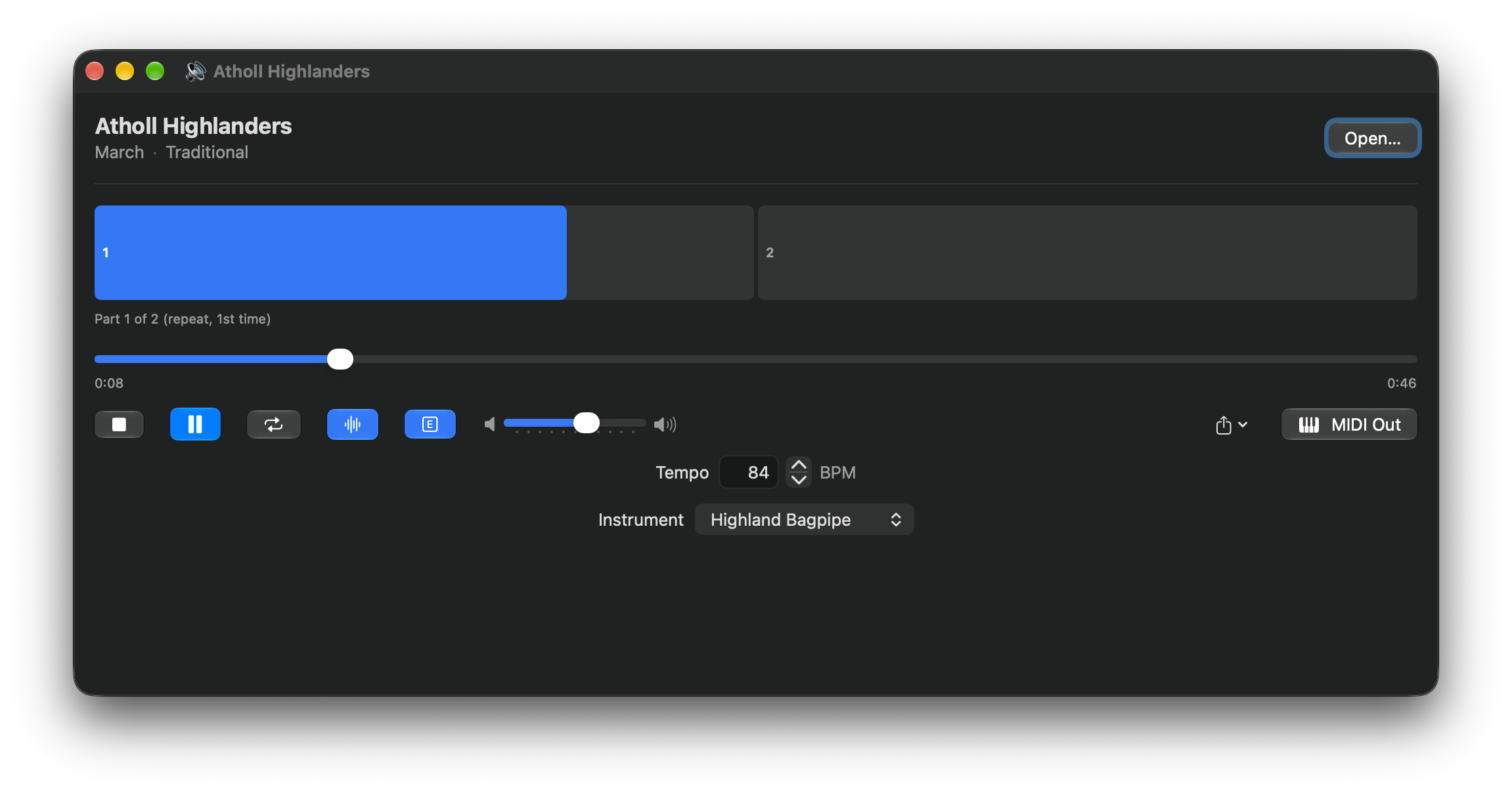
From top to bottom:
- Header. The tune's title, and under it the tune type and composer. In a set, the set's name, a padlock, and the tune that's playing. Open… on the right opens more tunes.
- Set list (sets only). The tunes in the set, in playing order, each with its tempo.
- Parts bar. One block per part, sized by length, filling as it plays. The current part is highlighted. In a set, tune names run along the top. Under it a line says where you are, for example “Part 2 of 4 (repeat, 2nd time)”.
- Voices (when there's more than one). A checkbox per voice to mute it.
- Time slider. Drag to move through the tune.
- Transport row. Stop, Play/Pause, Loop, Drone, Lead-in (the E button), Volume, Export and MIDI Out.
- Tempo and Instrument.
Hover over any button to see what it does. While a tune plays, the tab's title shows a speaker 🔊.
Playing
- Play/Pause starts and pauses. Pausing keeps your place.
- Stop stops and goes back to the start.
- Click a part in the parts bar to jump to its start. In a set, click a tune's name above the bar to jump to that tune.
- Drag the time slider to move anywhere.
Only one tune plays at a time. Starting a tune in one tab stops whatever is playing in another.
Media keys
The play/pause key (F8) works on whichever tab is playing. If nothing is playing, it goes to the tab you played last, or the one you brought to the front since. F7 and F9 skip back and forward 10 seconds. The tune also shows in Control Center's Now Playing.
Tempo
The tempo is in beats per minute, counted the way pipers count the tune: quarter notes in 2/4 and 3/4, dotted quarters in 6/8 and other compound times, half notes in cut time.
- Type a number in the Tempo box and press Return, or use the arrows beside it.
- Anything from 20 to 248.
- You can change it while the tune plays. It carries on from the same place.
A tune starts at the tempo its file gives. When the file doesn't give one, PipePlayer uses a usual tempo for the tune type: a march slower than a jig.
Where the tempo is kept
- A single tune: the tab remembers your tempo, even after you quit. The tune file is never changed.
- A set: each tune's tempo is saved in the set, unless the set is locked.
Looping
Each click of the loop button moves to the next setting:
| Setting | What loops |
|---|---|
| Off | Nothing. Plays once and stops. |
| Tune / set | The whole tune, or the whole set. |
| This tune (sets only) | The tune that's playing. Click another tune to loop that one instead. |
| Part | The part that's playing. The button shows a small 1. |
Looping parts
- In part looping, click a part to loop that one instead.
- Shift-click a part to loop from the current part to that one: parts 2 to 3 of 4, 2 to 5 of 6, whatever you need. It works in either direction, and turns part looping on if it was off.
- Shift-click again to move the far end. The part you started from stays put.
- Click inside the looped parts to jump there and keep looping. Click outside them to loop just the part you clicked.
- In a set, a run of parts can cross into the next tune, for example the last part of one tune and the first part of the next, to practise the change.
Looped parts are outlined, and the line under the bar says what's looping, such as “Looping Parts 2–4”. The loop comes round with no gap, and you can change the tempo while it loops.
Lead-in
Turn on the E button to hear the drones strike in and a held E before the tune starts, the way a band starts a tune.
- The E and any pickup make two beats together. In 2/4 with an eighth-note pickup, that's 1½ beats of E, then the pickup. With no pickup, it's two full beats. If the pickup is already two beats or more, there's no E.
- The beat is the tune's own: a quarter in 2/4, a dotted quarter in 6/8.
- It plays only when you start from the very beginning: not before each tune of a set, not when a loop comes round, and not when you start partway through.
- The drones sound during the lead-in when the drone is on.
- When it's on, it's included in exports and sent over MIDI Out.
It's set per tab and starts off.
Drones
The drone button adds a continuous drone under the tune. It starts with the tune and stops with it, and carries on through loops without a break.
- The drone needs a sound that has a drone in it, such as the Highland bagpipe SoundFont that comes with PipePlayer. With Apple's General MIDI sounds you'll get an unrelated low note, or nothing.
- Set how loud it is with Drone level in Settings → Sound.
- Exports include the drone when it's on.
Harmonies
Play seconds or another harmony along with a tune. The harmony follows the tune's tempo and repeats.
Add a harmony
- Drag the harmony file onto the right half of the window, onto Add as Harmony, or
- File → Add Harmony… (⌥⌘O).
Each harmony gets a checkbox under Voices. Untick it to mute that harmony, or tick it again to bring it back. You can mute the melody too, to hear only the seconds. Adding the same file again replaces it rather than doubling it.
Remove a harmony
Click the × next to its checkbox, or right-click the checkbox and choose Remove Harmony.
Arrangements
A MusicXML file with several parts, such as a quartet arrangement, opens with all its parts playing and a mute checkbox for each.
How loud
Harmonies play a little under the melody. Set how much with Harmony level in Settings → Sound.
A tab remembers its harmonies and mutes after you quit. To keep a tune and its seconds together as a file, use File → Save as Set… (see Sets).
Tune details
With a single tune open, its title, type and composer can be changed right in the header.
- Click the title, the type or the composer. If there's no type or composer yet, click the faint Add type or Add composer.
- Type the new text.
- Press Return or click somewhere else to save. Press Esc to cancel.
Clear the type or composer to remove it.
This changes the tune's file. Only the one line or tag that holds that detail changes, and the rest of the file stays exactly as it was, so it still opens the same in Bagpipe Reader, MuseScore or wherever it came from. The file's name doesn't change.
- The type changes how the tune plays. Change “Reel” to “Strathspey” and it's played pointed like a strathspey.
- BWW files can't hold quotation marks. A full stop that BWW files often put after the type (“Reel.”) is hidden in the header but kept in the file.
- MusicXML files have no standard place for a tune type. PipePlayer saves it where only PipePlayer reads it, so MuseScore and Ensemble won't show it. The title and composer are standard, and the title and composer printed on the score update too.
- ABC files holding more than one tune can't be edited.
- Tunes in a set can't be edited from the set, because the same file may be in other sets. Open the tune by itself to change it.
Playback carries on from the same place at the same tempo when you edit, and harmonies stay.
Tabs and windows
- Each tune or set opens in its own tab.
- Opening something that's already open switches to its tab.
- File → New Window (⌘N) opens another window. Drag tabs between windows as in any Mac app.
- File → Close Tune empties a single tune's tab without closing the tab.
When you quit and open PipePlayer again, your tabs come back with the same tempo, muted voices and harmonies. To start fresh each time instead, turn off Reopen tabs at launch in Settings → General.
Sets
A set is a list of tunes played straight through, each once, each at its own tempo, the next coming in on the beat. Use one for an MSR, a medley, or a few jigs to hear how they sit together.
Make a set
- File → New Set (⇧⌘N) starts an empty set. Add tunes with + or by dropping them on the window.
- File → Make Set turns the open tune into a set, keeping its tempo and harmonies.
- With a tune open, drag a second tune onto the bottom of the window, onto Start a Set with Both.
- File → Save as Set… saves the open tune and its harmonies as a one-tune set, so they open together next time.
Save it
A new set is untitled until you save it with File → Save Set… (⌘S). Save it next to your tunes. After that, every change saves itself as you go.
The set is a .pipeset file. It stores where each tune is relative to the set, so you can move or copy a folder that holds the set and its tunes, and it still opens.
Edit a set
- Add tunes: click +, or drag files onto the left half of the window, onto Add to Set.
- Remove a tune: select it and click −, press Delete, or right-click it and choose Remove from Set.
- Reorder: drag tunes up and down the list.
- Jump to a tune: click it in the list.
- Set a tune's tempo: change the tempo while that tune is playing. The tempo shows on the right of its row.
- Rename the set: click its name in the header, type, and press Return. The set's file is renamed too.
Harmonies in a set
Each tune in a set can have its own harmonies:
- Right-click the tune in the list and choose Add Harmony…, or
- drag the harmony onto the right half of the window while that tune is playing.
Harmonies show under the tune's name in the list. Remove one from the tune's right-click menu.
Missing tunes
If a tune file has moved or been deleted, its row is dimmed and says why, and the rest of the set still plays. Put the file back, or remove the row.
Locking a set
Click the padlock next to the set's name to guard the set against accidental changes. Click it again to unlock.
While a set is locked:
- Tunes can't be added, removed or reordered.
- The set can't be renamed, and harmonies can't be added or removed.
- Dropping a file on the window opens it instead of adding it.
- You can still change the tempo to practise, but the set keeps its own tempos. The next time you open the set, every tune is back at its saved tempo.
The lock is saved in the set. A locked set you send someone opens locked for them too. It's there to prevent slips, not to stop anyone: anyone can click the padlock to unlock it.
Exporting audio
Save what you're hearing as an audio file, to send to the band or play along with on your phone.
- Click the export button (the square with an arrow) and choose a format: WAV (uncompressed), AAC (
.m4a) or MP4. - Pick a name and a place to save it.
The export uses everything as it's set now: instrument, volume, tempo, muted voices, drone and lead-in. A set exports as one file, all its tunes in order.
- It plays through once, whatever the loop setting.
- It's much faster than real time and silent while it works. A progress bar shows how far it's got.
- Cancel stops it. The part already written is kept.
Sound and instruments
Choose what PipePlayer plays through in Settings → Sound (⌘,). The choice applies to every tab.
| Source | What it is |
|---|---|
| SoundFont | A .sf2 or .dls sound file. PipePlayer comes with a Highland bagpipe SoundFont, FreesoundGHB, with chanter and drones. It's the default. |
| Built-in | Apple's General MIDI sounds, built into macOS. These include a bagpipe, but no drone. |
| Plugin | Any Audio Unit instrument installed on your Mac. |
SoundFonts
- Choose SoundFont, then use the menu beside it: pick a recent one, or Choose… to open a new one.
- A SoundFont you open is copied into
~/Library/SoundFonts, so it keeps working if the original moves. A file already in that folder is used where it is. - Show in Finder shows the current SoundFont's file. Clear Menu empties the recent list.
Instrument
The Instrument menu in the main window picks a sound from the current source: the SoundFont's own instruments (such as chanter or smallpipes), or Apple's 128 General MIDI instruments. Each tab can use a different instrument.
Plugins
- Choose Plugin and pick an instrument from the menu. Plugins load separately from PipePlayer, so a plugin that crashes can't take PipePlayer down with it.
- In the main window, Edit Plugin… opens the plugin's own window to choose its sounds. Each tab sets this separately.
- If a plugin won't load, PipePlayer falls back to the built-in sound and Settings says why.
Levels
- Volume, in the main window, sets the overall level.
- Drone level and Harmony level, in Settings, set the drone and the harmonies against the melody.
All three sliders snap to 10% steps, so it's easy to get back to the same level.
MIDI Out
Click MIDI Out to send the tune to another app or a hardware synth, in time with playback. PipePlayer appears as a MIDI source named PipePlayer in Logic, GarageBand, MainStage, a notation app, or Audio MIDI Setup.
- Each voice is on its own MIDI channel, starting with channel 1 for the melody. The drone is on channel 16, as note 36 (C1).
- The lead-in goes out too, when it's on.
- MIDI Out is set per tab.
Settings
PipePlayer → Settings… (⌘,)
Sound
Sound source, SoundFont or plugin, drone level and harmony level. See Sound and instruments.
General
- Reopen tabs at launch: bring back your tabs when PipePlayer opens.
- Check for updates automatically: see Updates.
- Buy me a coffee on Ko-fi: if PipePlayer has earned a spot in your practice.
Updates
PipePlayer updates itself. With Check for updates automatically on, it checks each time it opens and once a day while it's open, and asks before installing anything. It says nothing unless there's an update.
The first time, on the second launch, PipePlayer asks whether to check automatically. To check right away, choose PipePlayer → Check for Updates….
How tunes are played
PipePlayer plays tunes the way a piper would rather than note for note as written.
- Embellishments (doublings, throws, grips, taorluaths, birls, strikes, crunluaths and the rest) are played from a table of what pipers actually play.
- Strathspeys are played pointed, sharper than the written dotted rhythm.
- Repeated notes with no embellishment between them are held as one note, since a chanter can't sound the same note twice without one.
- Repeats and first and second endings are played in order, and the parts bar follows them.
- Harmonies are lined up with the melody part by part, so seconds with a slightly different bar count still stay together.
Menus and shortcuts
| Command | What it does |
|---|---|
| ⌘N New Window | Opens a new window. |
| ⇧⌘N New Set | Starts an empty set. |
| ⌘O Open… | Opens tunes, sets and packs. |
| ⌥⌘O Add Harmony… | Adds a harmony to the tune that's playing. |
| ⌘S Save Set… | Saves a new set for the first time. |
| Export Set… | Saves the set as a .pipepack to share. |
| Make Set | Turns the open tune into a set. |
| Save as Set… | Saves the open tune and its harmonies as a set. |
| Open Recent | Files you've opened before. |
| Close Tune | Empties a single tune's tab. |
| ⌘, Settings… | Sound and General settings. |
| Check for Updates… | In the PipePlayer menu. |
| F7 F8 F9 | Back 10 seconds, play/pause, forward 10 seconds. |
| Shift-click a part | Loops a run of parts. |
The Help menu links to the PipePlayer website, where this guide lives.
Troubleshooting
There's no drone
The sound you're using has no drone. Choose the bundled FreesoundGHB SoundFont in Settings → Sound, and check Drone level isn't at zero.
A file won't open
PipePlayer says why. Very old binary .bmw files can't be read; open them in Bagpipe Music Writer and save them as .bww. Check that the file ends in one of the extensions listed in Getting started.
A tune plays wrongly
Check the tune type in the header: a tune marked as a strathspey is played pointed, and a missing tempo falls back to the usual one for its type. If it still sounds wrong, report it with the file attached.
My SoundFont or plugin is gone
If PipePlayer can't find your SoundFont (on a drive that isn't connected, say) or can't load your plugin, it uses the built-in sound and Settings explains why. Your choice comes back once the file or plugin is available again.
MIDI Out is greyed out
macOS couldn't create PipePlayer's MIDI source. Quit and reopen PipePlayer.
A set's tune is dimmed
Its file has moved or been deleted. Put it back where it was, or remove it from the set and add it again from its new place.
I can't change anything in a set
It's locked. Click the padlock next to its name.
Privacy and support
PipePlayer collects nothing: no account, no analytics. The only thing it fetches from the internet is the update check, from GitHub. It remembers your recent files, open tabs and settings on your Mac.
PipePlayer is free and open source. If it's earned a spot in your practice, you can buy me a coffee on Ko-fi. Problems and ideas go on GitHub.